
Diary & scheduling
See the day.
Plan the next.
Know who you’re teaching, where you need to be and where there’s room in your day. Keep agreed Lessons and time off in one clear view.
See how the Diary worksPlan your teaching time around the rest of your day.
Your next Lesson.
And the space
around it.
The pupil, the time and the Instructor — together in the Diary.
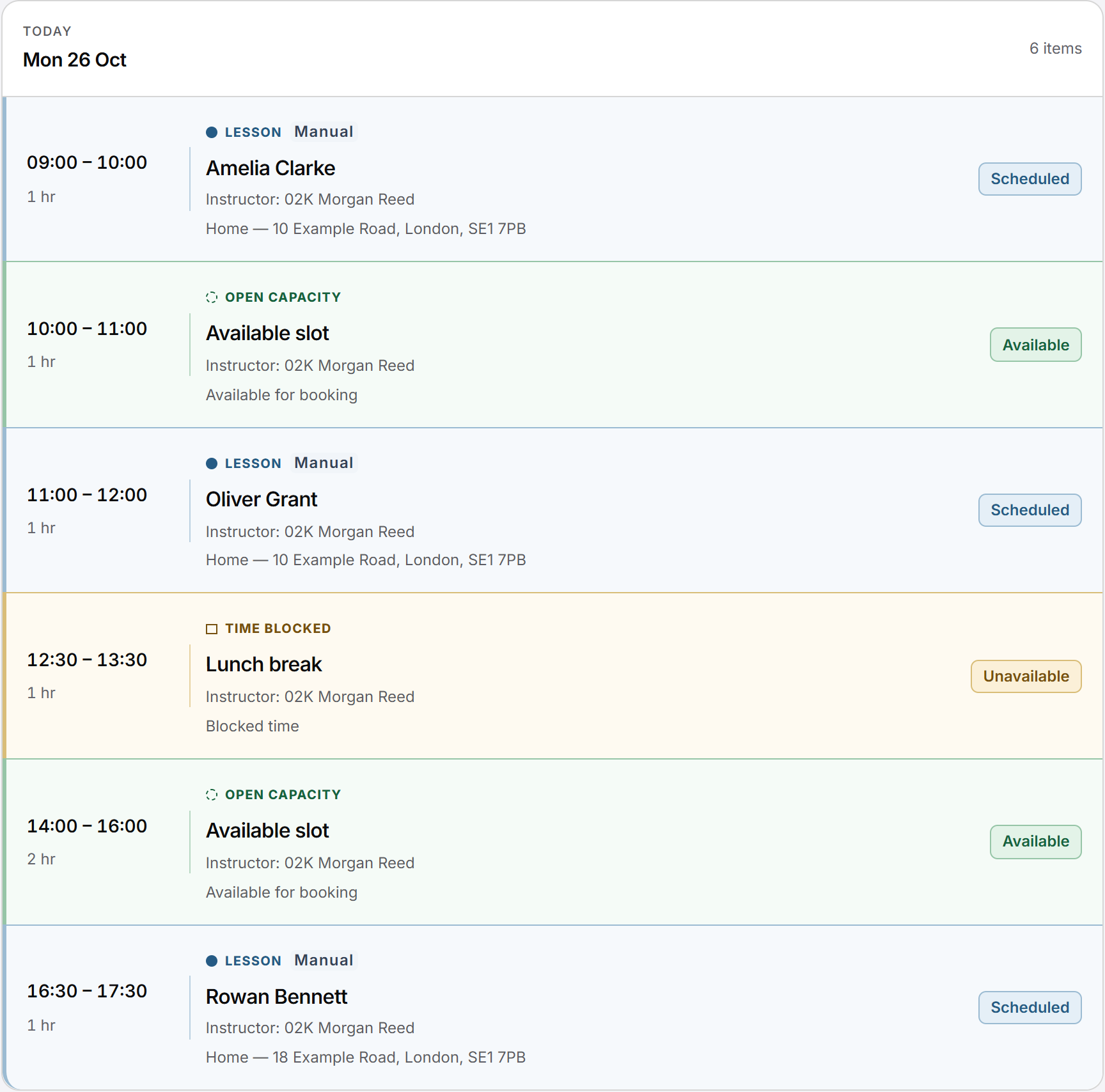
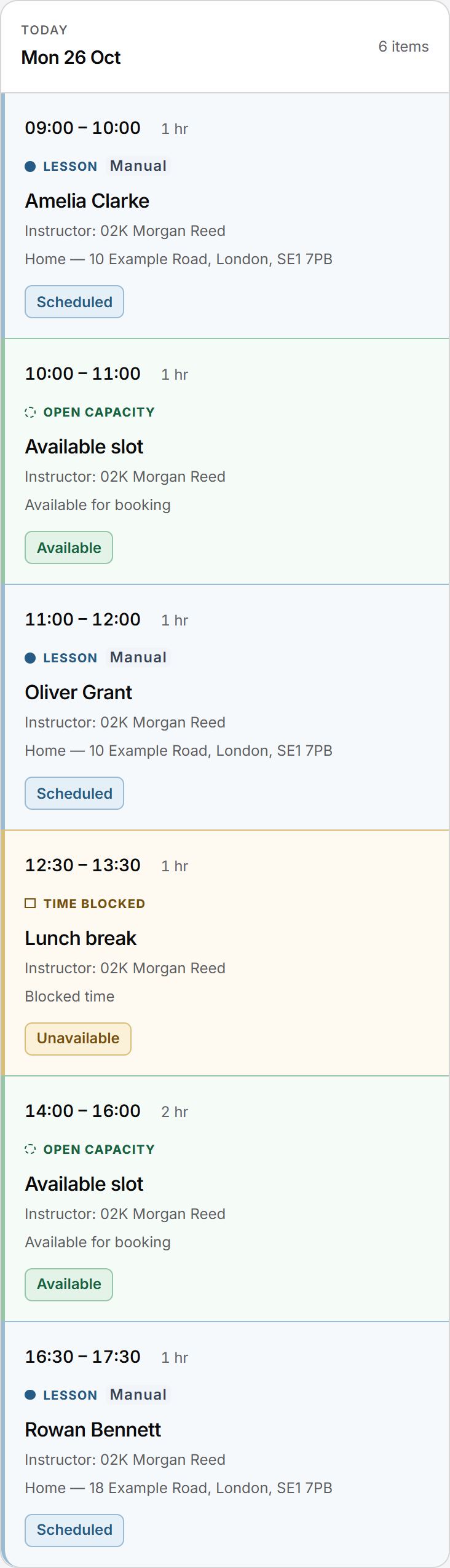
01 / A clear working day
Different kinds of time.
Clearly understood.
A gap is useful only when you know what it means. Keep your commitments separate from the time you might offer.
Booked Lessons
See agreed Lessons with their own details and history. Weekly or fortnightly repeats keep an individual record for each Lesson.
Time you cannot teach
Block time for breaks and other commitments. Working hours describe your usual pattern; they do not create bookings.
Time you could offer
Offer specific lesson times to eligible pupils. A request or offer is not a confirmed lesson.
02 / Before you book
The right pupil.
The right time.
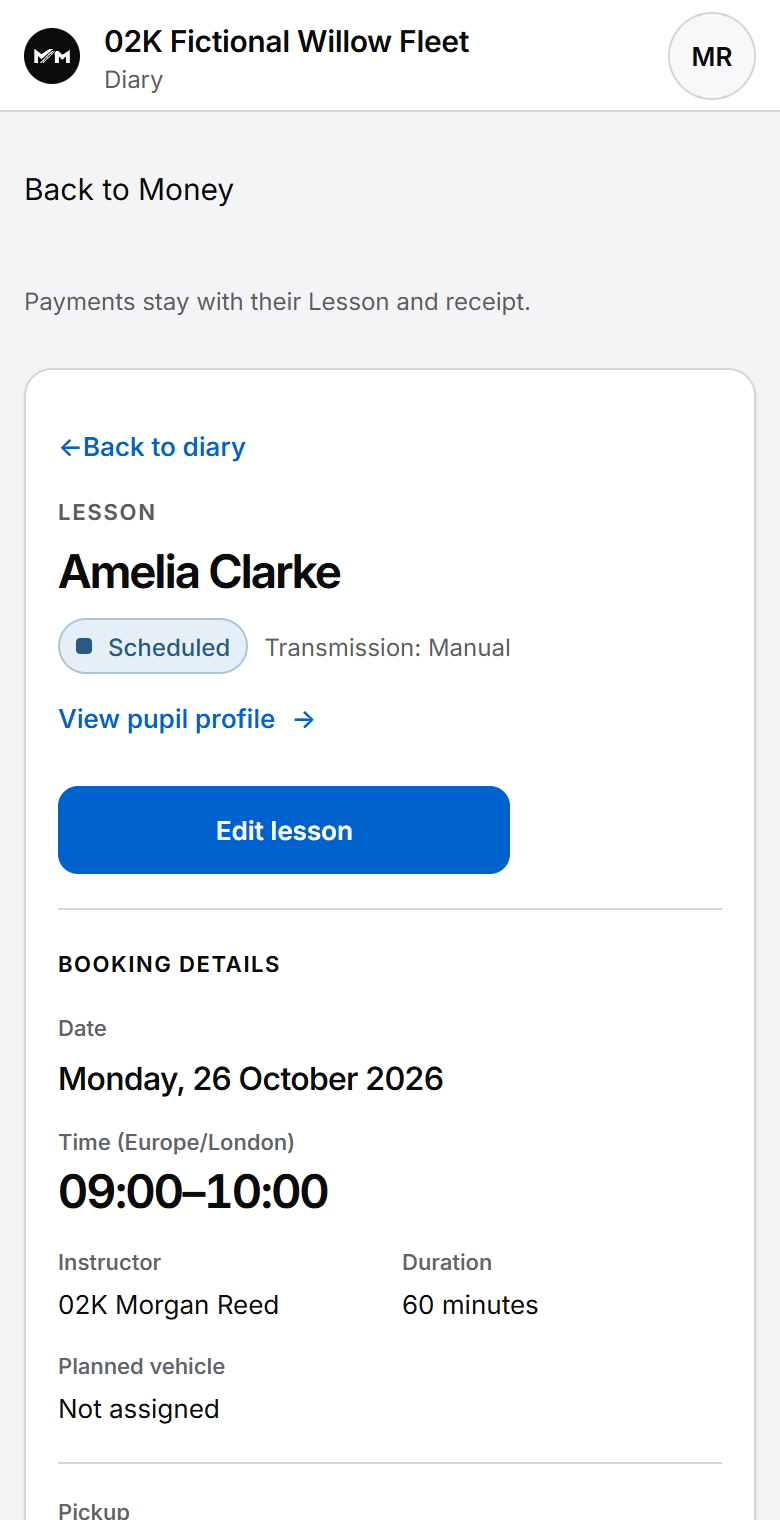
Check the pupil, Instructor, pickup and drop-off before saving. Booking checks help identify clashes; the saved Lesson keeps the details together.
Rescheduling and cancellation keep the existing record understandable. School office access follows each person’s permissions.
Read the step-by-step Diary guide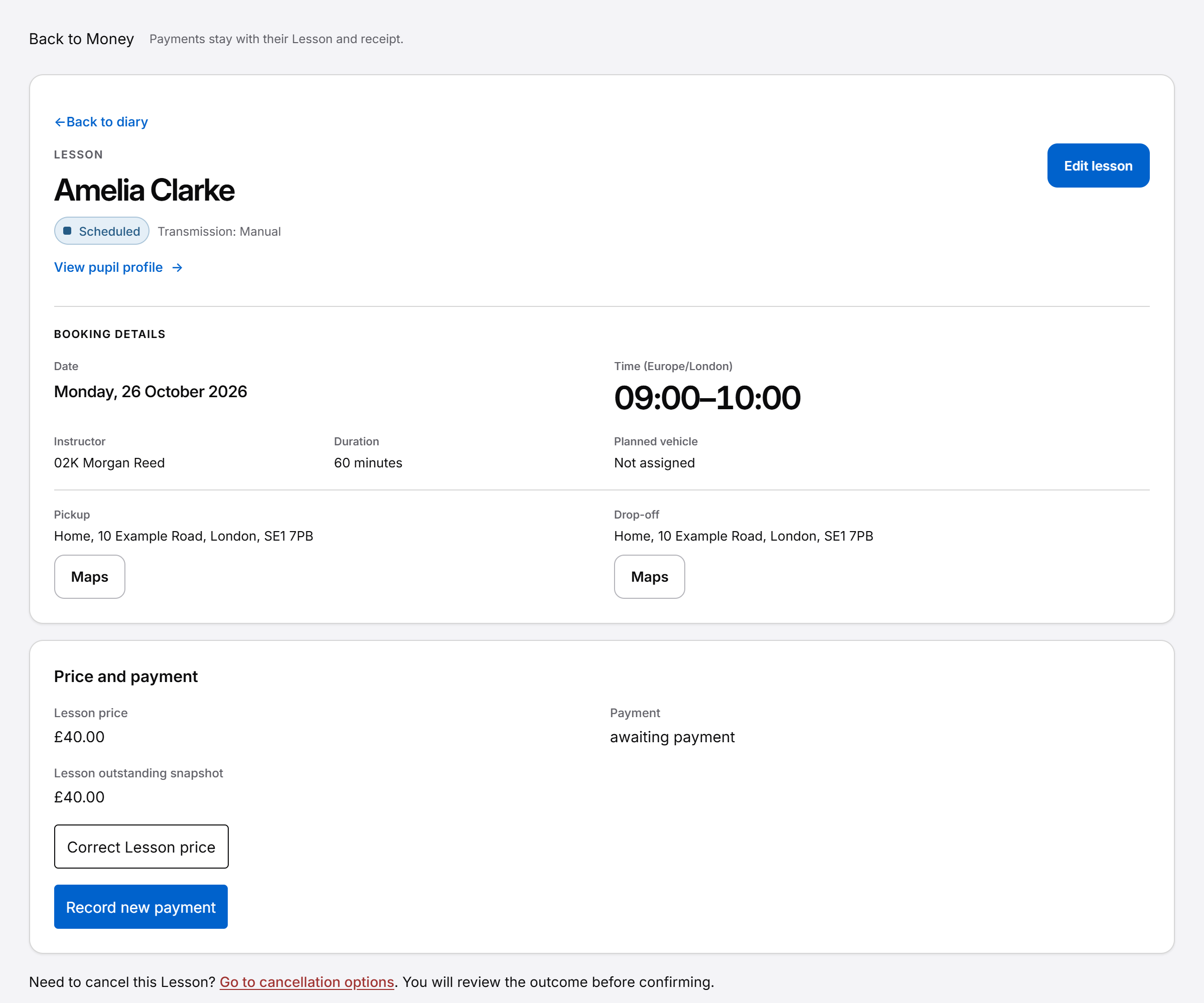
03 / Your preferred view
The detail you need.
The view that suits you.
Move between day, multi-day, week, month and Agenda views. The same Lessons stay connected as you change your view.
A revocable, read-only calendar feed can show generic booked or unavailable time in an external calendar. It does not export private pupil details or provide two-way editing; refresh timing depends on the calendar app.
Understand requests & availabilityThe practical picture
What belongs in the diary?
Start at Home for the next Lesson and work needing attention. In Diary, choose the date, Instructor and range, then switch between Calendar and Agenda. Working hours, recurring Lessons and saved pickup locations retain their own context. Block time when you are unavailable. Publish open teaching capacity only when you choose to offer it. Changes and cancellations remain traceable.
Captures show the current application with fictional data. Dates and records are illustrative.
Different kinds of time
A clear diary starts with clear meanings.
- Working hours
- Your normal weekly teaching pattern, including closed days or more than one working period. This describes intention; it does not create lessons or automatically publish every gap.
- Lessons
- Booked teaching with a specific pupil. Weekly and fortnightly recurrence support a regular pattern, with each lesson retaining its own appointment and history.
- Blocked time
- Unavailable time such as lunch, a meeting or a personal commitment. It protects time without inventing a pupil appointment.
- Available lesson times
- Specific open teaching capacity you choose to offer to eligible pupils. Publishing a slot does not mean someone has booked it.
Putting the pattern to work
Set the pattern. Book the work. Protect the gaps.
Begin with when you normally work, then add confirmed lessons and recurring pupils. Protect time you cannot teach with blocked time. If you want to offer a particular opening, publish an available lesson time rather than treating every empty square as bookable.
Scheduling checks guard conflicting commitments. A pupil request describes demand; it does not reserve the diary. Temporary reservations have their own state, and a confirmed lesson is the booked work. The booking and reservation explanation follows those paths.
Saved pickup or meeting locations keep the practical appointment context close. Changing the time or cancelling a lesson retains history rather than removing the appointment’s earlier story.
The right view of time
Focus on today, then step back to the month.
The Instructor Diary includes day, 3-day, 5-day, 7-day, Week, Month and agenda views. Week follows Monday to Sunday; 7 Days starts from the selected date. The month grid gives a broader view with a route into a particular day.
Lessons, cancelled work, blocked time, open slots and reservations remain distinguishable. A broader view does not collapse those meanings into one appointment type.
Authorised school office users can review the school or an Instructor’s diary. Instructor-only access stays scoped to their own work. See school diary visibility and responsibilities.
Beyond the workspace
A calendar subscription is a view, not another place to book.
The diary includes an instructor-owned, revocable read-only calendar subscription. It exports generic lesson and unavailable-time entries, with cancellation status. It does not send pupil-private detail or publish available lesson times as booked lessons.
Editing an event in an external calendar does not edit Miles & Minutes. This is not two-way Google, Apple or Microsoft calendar sync. External apps determine their refresh behaviour. Check compatibility and update timing with your chosen calendar app.
For a fictional example, an instructor can plan three lessons, block lunch and offer a separate opening. The accepted illustration above shows these as different things. Read the Diary guide for the scheduling workflow and record distinctions.
Questions answered
Diary questions, without the guesswork.
Find answers to common questions about this part of your working day.
Does an open slot automatically become a lesson?
No. An available lesson time is capacity. An eligible booking must pass the relevant rules and checks before a confirmed lesson is created.
Can lessons repeat?
Yes. Weekly and fortnightly recurring lessons support a regular teaching pattern. Recurring work remains distinct from normal working hours.
Can two pupil lessons overlap?
Scheduling checks protect against conflicting Instructor and pupil commitments. An empty-looking calendar is not permission to bypass those checks.
Can I block lunch or meetings?
Yes. Blocked time protects unavailable time without recording a pupil lesson. Recurring blocks are not currently offered.
Can I see a month as well as a week?
Yes. Month and agenda views sit alongside day and multi-day views. Week is Monday to Sunday; 7 Days starts from the date you select.
Does it sync both ways with Google or Apple Calendar?
No two-way calendar sync is offered. The read-only subscription exports generic booked and unavailable time; external edits do not update Miles & Minutes.
For a concise reference to access, mobile delivery and product boundaries, read About Miles & Minutes.
Practical reading
Work through the question.
Keep exploring
See how it connects.
Keep exploring
From a clear day
to a confident next step.
Follow the existing guide to add one agreed Lesson, review the funding choice and check that it saved.
Read the Diary guide Register interest Visit support