
For driving schools
One school.
Clear responsibilities.
Keep the office and your instructors working from the same picture. Organise pupils, coordinate Lessons and make each person’s responsibilities clear.
Explore school workflowsA shared picture for your school team.
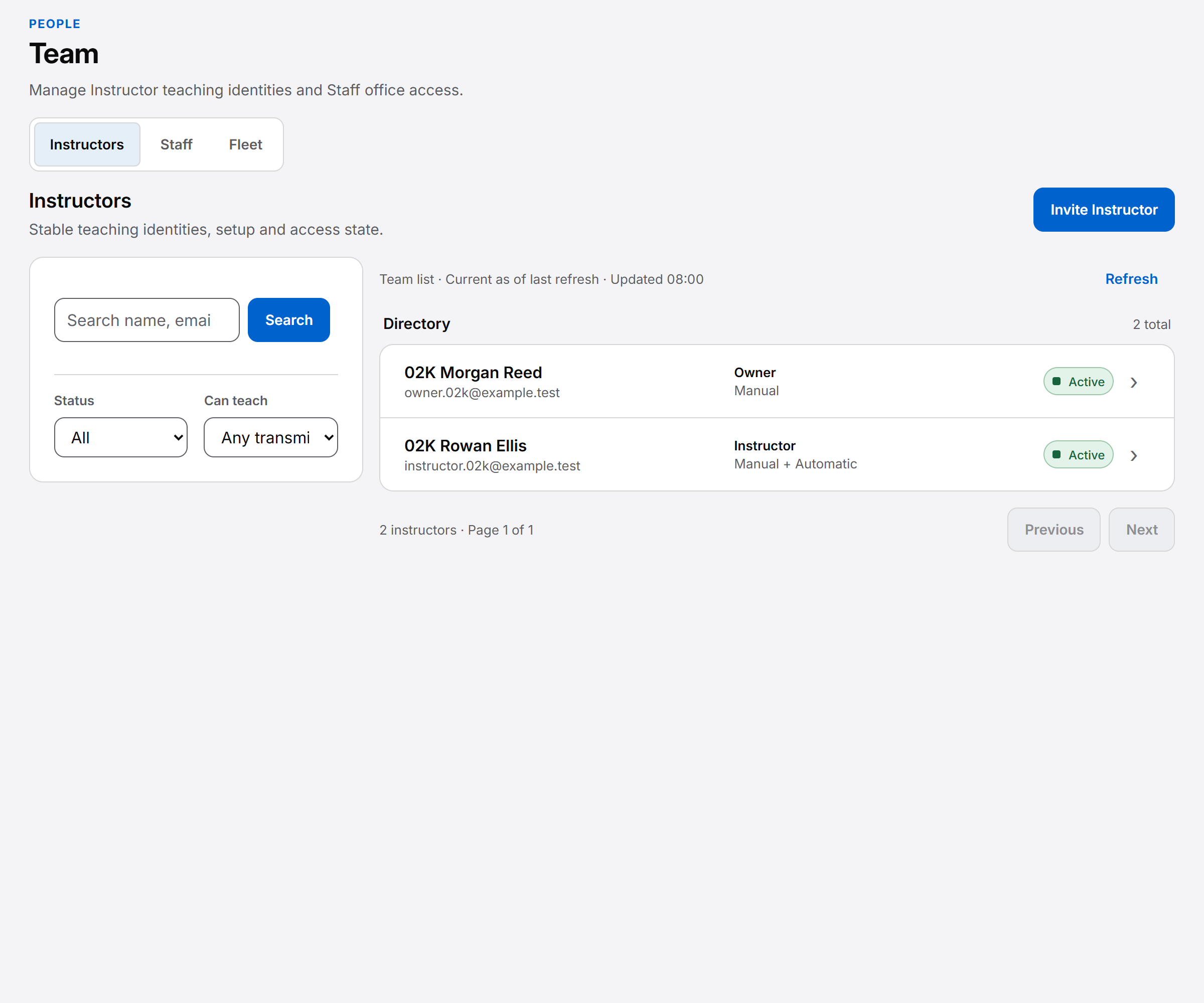
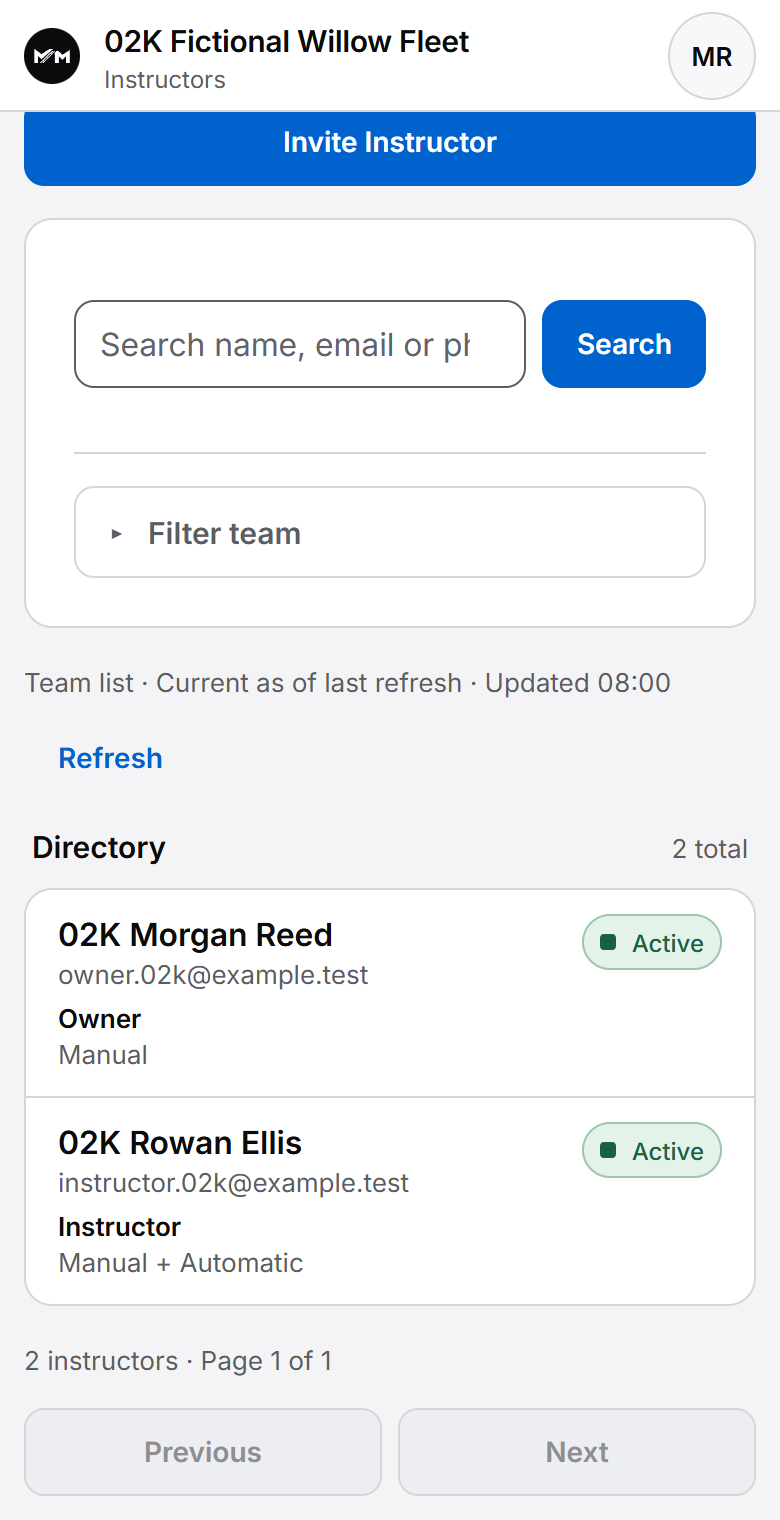
A growing team.
A clear place
for everyone.
See who teaches, who supports the school and which work each person can access.
01 / People & permissions
Help the team work together.
Keep responsibility clear.
Give the office the tools to organise the day and instructors the pupil records they need. Access stays tied to each person’s role.
Owner & school office
Owners manage school access. Authorised office users coordinate Lessons and pupil records within their permissions; office access does not make someone a teaching Instructor.
Instructors & their pupils
Instructors work with their assigned pupils. Assigning a pupil to a compatible active Instructor does not give every Instructor access to every pupil.
Financial access
Permission to organise Lessons is separate from permission to record money. Reports and date-filtered CSV exports follow the user’s permitted school scope.
When the team changes
A new Instructor.
The same pupil history.
Changing a pupil’s assigned Instructor does not rewrite who taught previous Lessons. Future commitments need to be reviewed and resolved.
Deactivating an Instructor preserves their history. It does not automatically transfer future Lessons or settle money.
Read the multi-instructor guide03 / Day-to-day coordination
One operational picture.
Clear limits.
Filter school lists, coordinate bookings and check factual activity within the access your role permits. Reporting does not rank teaching quality, and recorded Lesson charges are not the same as earnings, commission or settlements.
PDI and Trainer development has its own permissions and records. A school role alone does not confer training or teaching authority.
Explore PDI & trainingPlanned licensing
Licensing follows teaching.
Non-teaching office and admin accounts are not billable teaching licences. An Owner or admin who also teaches counts once as a teaching Instructor.
Staff permissions remain separate from licensing.
The practical picture
How does a school stay coordinated?
Owners and authorised staff can manage Instructor and Staff access, assign pupils and review school activity. A Lesson still belongs to its Instructor. School visibility and permissions are deliberate rather than a single shared account for everyone.
School roles control access to the relevant work. The public instructor directory shows only eligible profiles deliberately published by authorised users. Listings are not guaranteed. Browsing does not create an account or book a lesson.
People and responsibilities
Office access does not make someone an Instructor.
A school needs more than a larger copy of one instructor’s diary. The Owner controls staff access and roles. Admin and office permissions determine which pupil, scheduling, settings and finance work a person may do. Instructor access remains linked to that instructor’s teaching records and assigned pupils.
An office member can have permitted administrative work without a teaching identity. Someone who teaches and helps in the office can retain their Instructor identity while receiving deliberate office authority. Sharing one login is not the model.
Finance permission is separate from diary or pupil work. Being able to coordinate Lessons does not automatically grant access to every financial record, and an office role cannot govern the Owner’s permissions.
A school working pattern
Coordinate the team without losing attribution.
Place the pupil
Assign the pupil to an appropriate active Instructor. Reassignment is a deliberate change that must address future commitments; it does not relabel all earlier Lessons.
Coordinate the day
Authorised office users can review the school diary or a selected Instructor’s work, and manage Lessons within their permissions. Instructor-only access stays scoped to their work.
Review the operation
Use date-ranged reports and permitted CSV exports for factual Lesson activity and recorded money. A count of completed Lessons is not a ranking of teaching quality.
Day-to-day office work
One view across the school, with clear limits.
School-wide pupil lists and Instructor filters help the office find the right context. Permitted users can create, reschedule, cancel or complete Lessons through the same booking rules used for teaching work. A school diary retains the Instructor’s identity alongside the appointment.
School terms and pricing settings support permitted administration. Recorded receipts, Account Credit and outstanding Lesson money remain distinct. Reports describe received money rather than claiming revenue, earnings or commission settlement.
For the detail behind the school view, explore pupil assignment and records, diary time and changes, and money records and finance boundaries.
Fictional team example
A pupil changes Instructor. Their earlier work stays meaningful.
A school arranges for Amelia to continue with a different Instructor. The authorised office user handles the reassignment and future commitments. Earlier Lessons still identify the Instructor who taught them; the new assignment describes who is responsible now.
Staff and Instructor deactivation preserve records and history. Outstanding live pupil ownership or future teaching commitments must be resolved before an Instructor can be deactivated. This is not a promise of automatic school-to-school transfer or a complete departure-and-settlement service.
The product serves independent instructors and school teams without a published promise of unlimited scale. A provider running instructor training can also explore the separate PDI, Trainer and Academy workflows.
Questions answered
Questions for the school Owner.
Find answers to common questions about this part of your working day.
Can office staff use the software without teaching?
Yes. Office access and an Instructor teaching identity are separate. The Owner controls staff roles, and each supported action requires the appropriate permission.
Can I assign or reassign pupils?
Authorised users can assign pupils and use the dedicated reassignment workflow. Compatible Instructor teaching settings and future commitments must be addressed; historical Lesson attribution is retained.
Can instructors access every pupil in the school?
Instructor-only access is limited to appropriate assigned pupils and records. Wider office access requires deliberate authority; it is not granted merely because someone teaches at the school.
Can I review activity across the team?
Authorised office roles have school diary, pupil and factual reporting views. Report sections and exports depend on the user’s underlying permissions, including separate finance authority.
What does it cost for a school or office staff?
Planned Essential is £12.99/month per teaching Instructor. Non-teaching office and admin accounts do not need a teaching licence; an Owner or admin who also teaches counts once. View the planned prices on the homepage. Subscriptions are not yet on sale, and AI is limited to authorised fictional-data testing.
Can you migrate all of our existing school records?
There is no public self-service migration guarantee. Existing records and onboarding needs require individual discussion; do not assume every source system or historical record is supported.
For a concise reference to access, mobile delivery and product boundaries, read About Miles & Minutes.
Practical reading
Work through the question.
Keep exploring
See how it connects.
Choosing a system? Compare driving instructor software.
Keep exploring
Bring clarity
to the school day.
Explore how booked Lessons, unavailable time and offers fit together in the Diary.
Explore Diary & scheduling Register interest Visit support